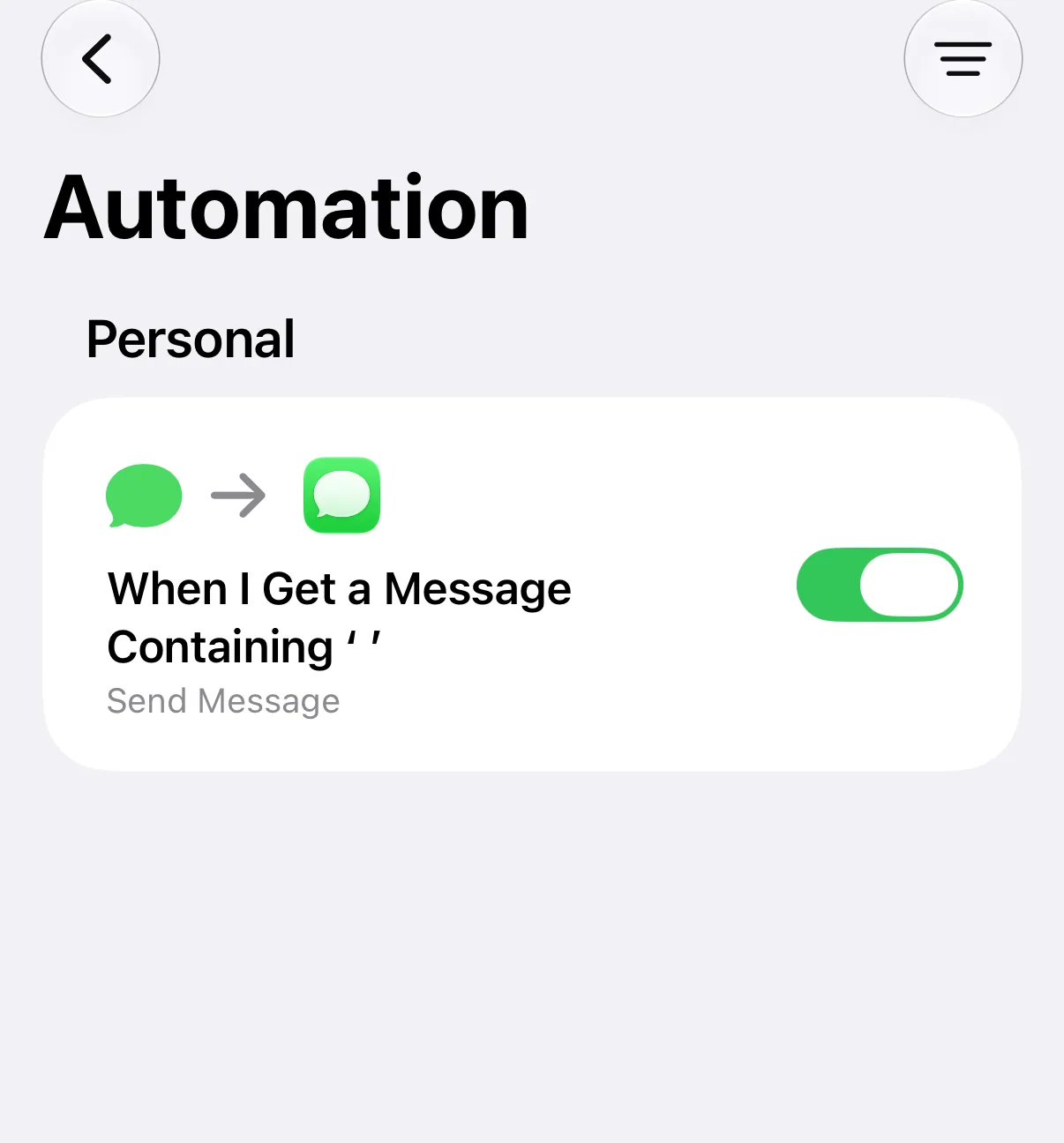
This guide walks you through forwarding incoming texts to another phone number with nothing but the Shortcuts app on your iPhone.
No app installation is required for this!
If you would rather have your texts forwarded by email, we recommend our app autoforward — see How to Forward SMS to Email on iPhone.
Open the Shortcuts app on your iPhone and go to "Automation".
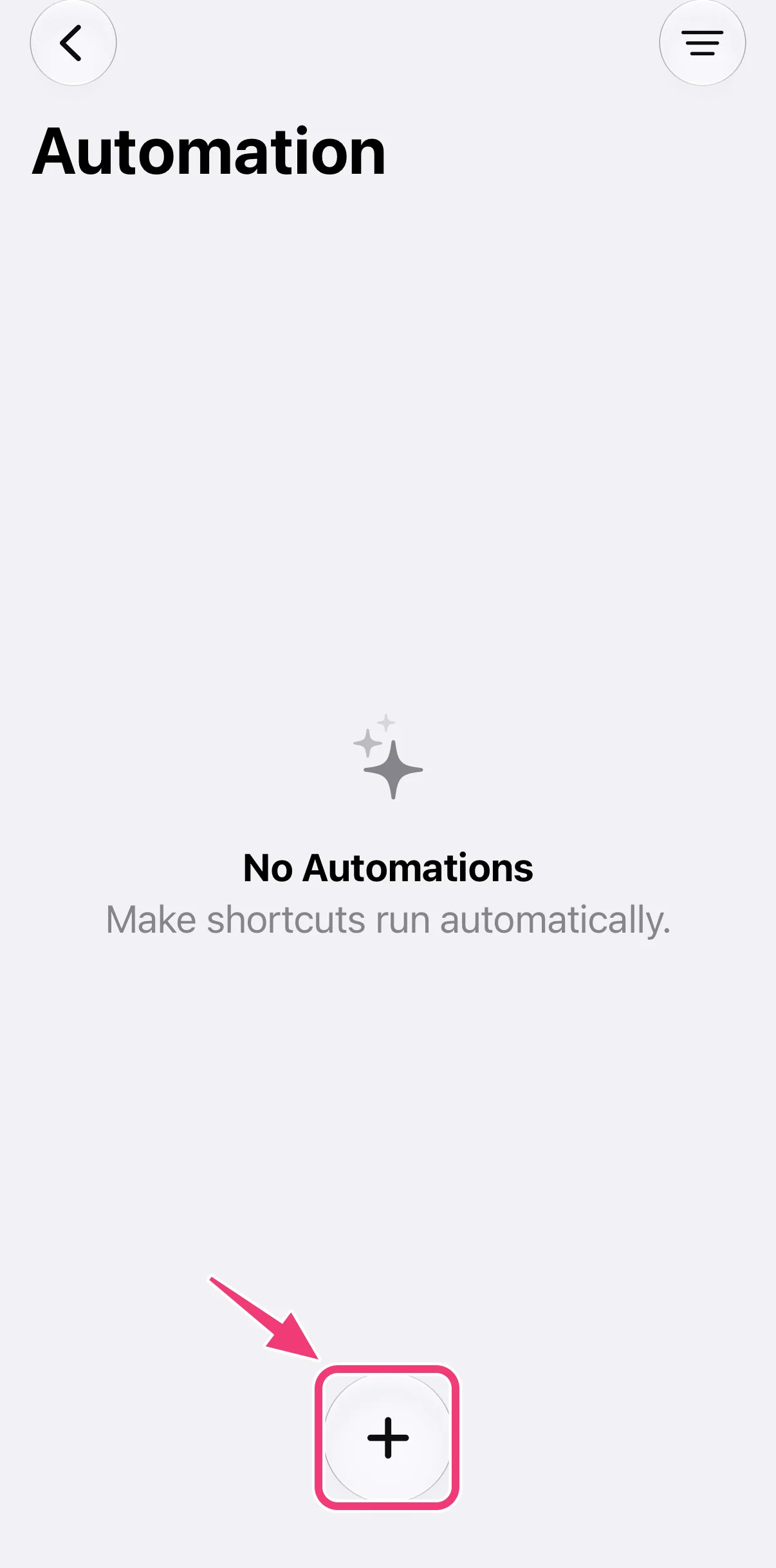
1. Add a New Automation
Tap "+" at the bottom of the "Automation" page.
2. Open the Editor
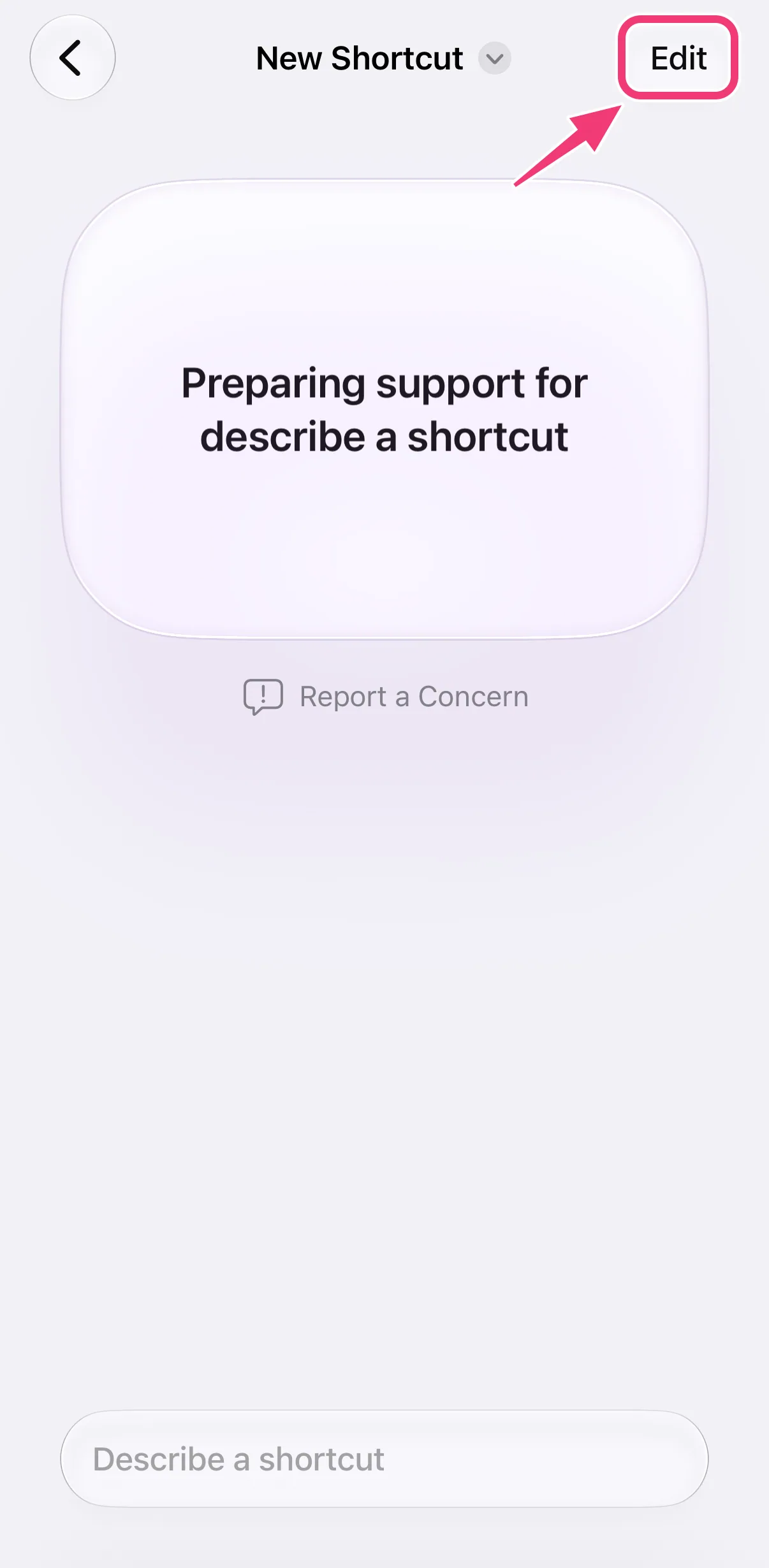
If Shortcuts asks you to describe a shortcut, tap "Edit" (top right). If the editor opens right away, skip this step.
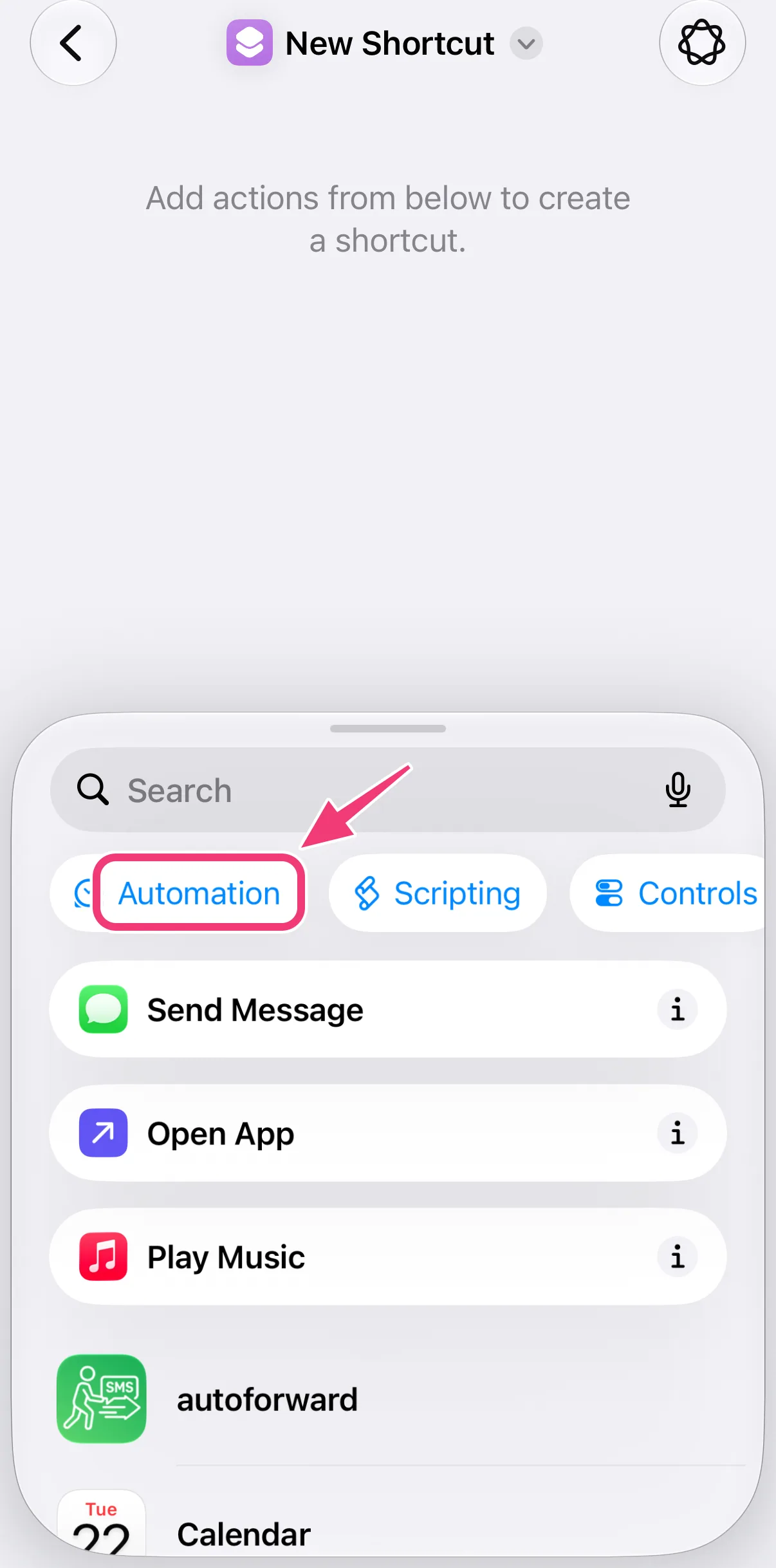
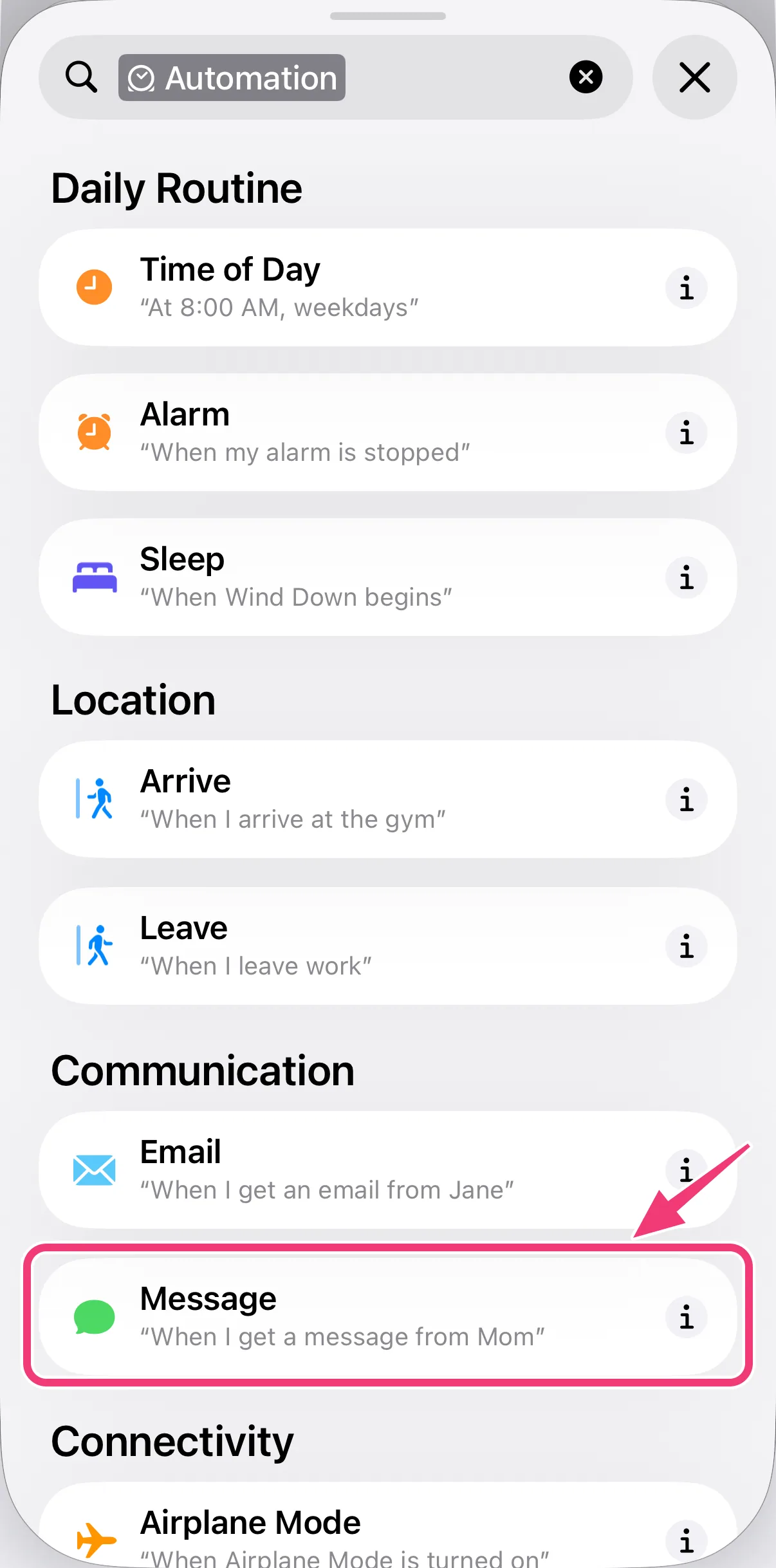
3. Tap "Automation" and Select "Message"
In the list of actions at the bottom, first tap "Automation" — it is easy to miss — then select "Message" as the trigger.
4. Choose Which Messages Are Forwarded
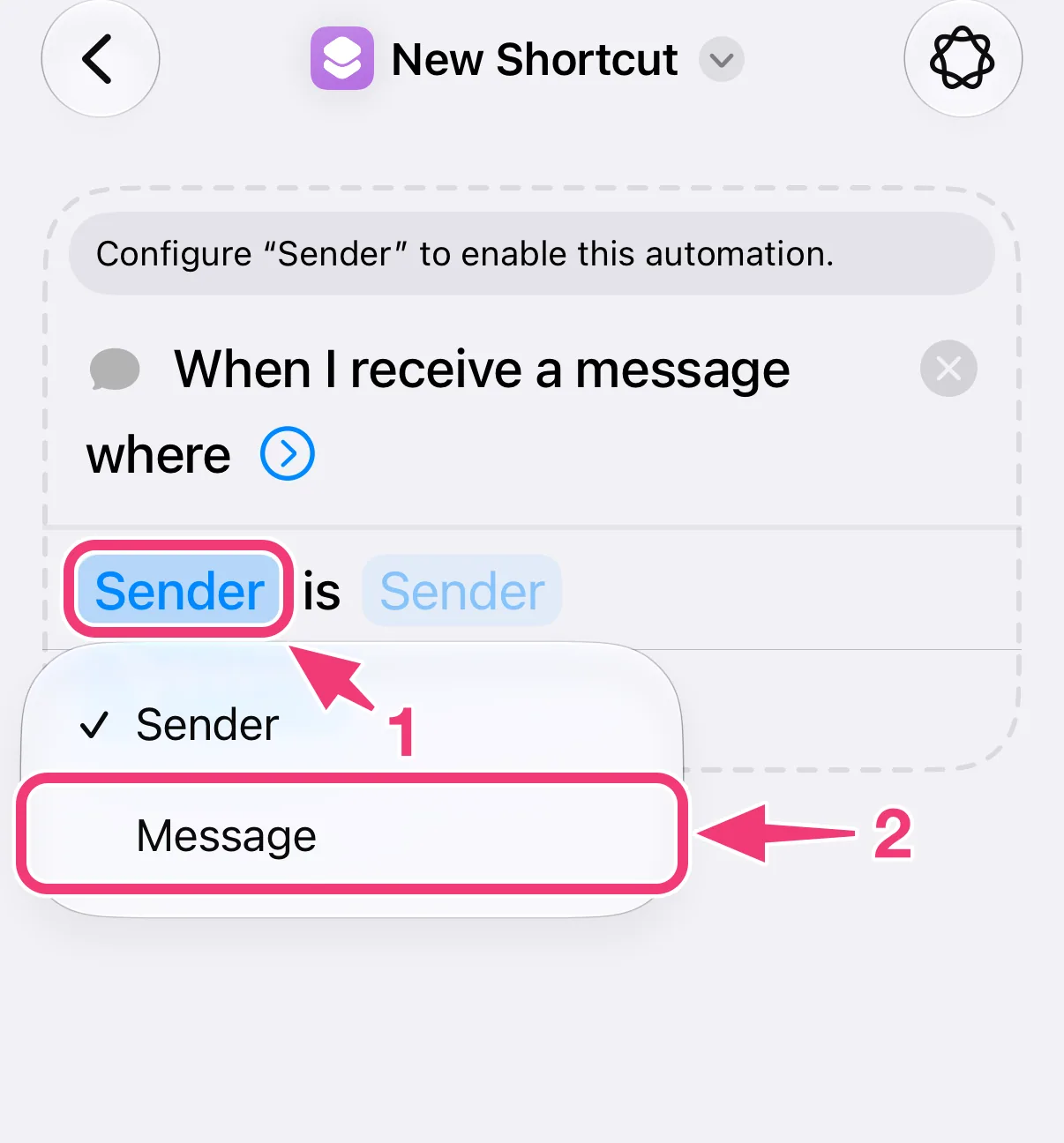
A new trigger starts out as "Sender is Sender" and needs a condition before the automation can run. To forward all of your texts:
- Tap "Sender" and switch it to "Message".
- Tap the empty field after "contains", enter a single space and tap ✓. Every text contains a space, so every text is forwarded.
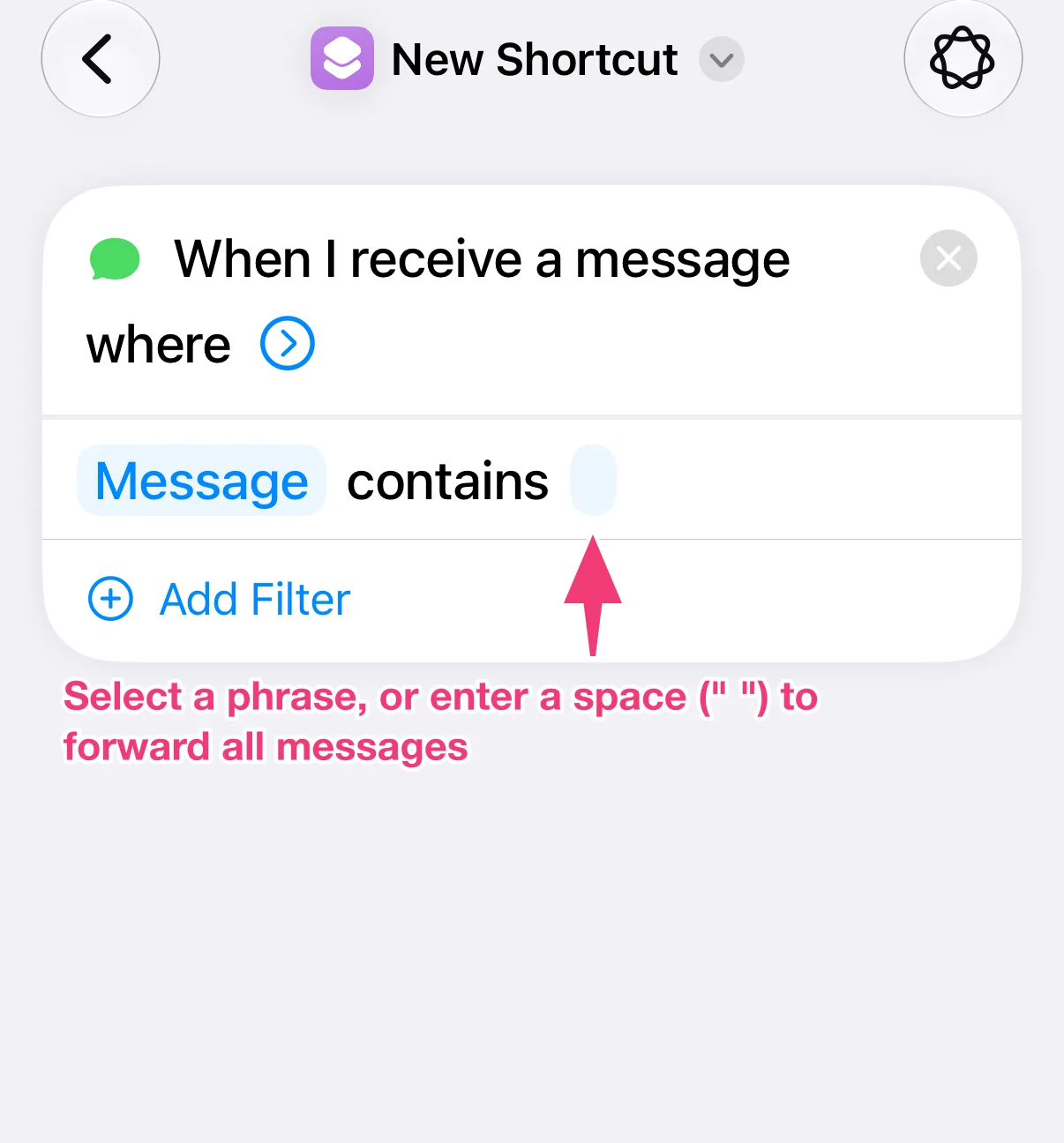
To forward only certain texts, enter a word or phrase they contain instead of the space — "code", for example, for login codes. To forward only the texts of one sender, leave "Sender" as it is and pick the contact or number in the field next to it.
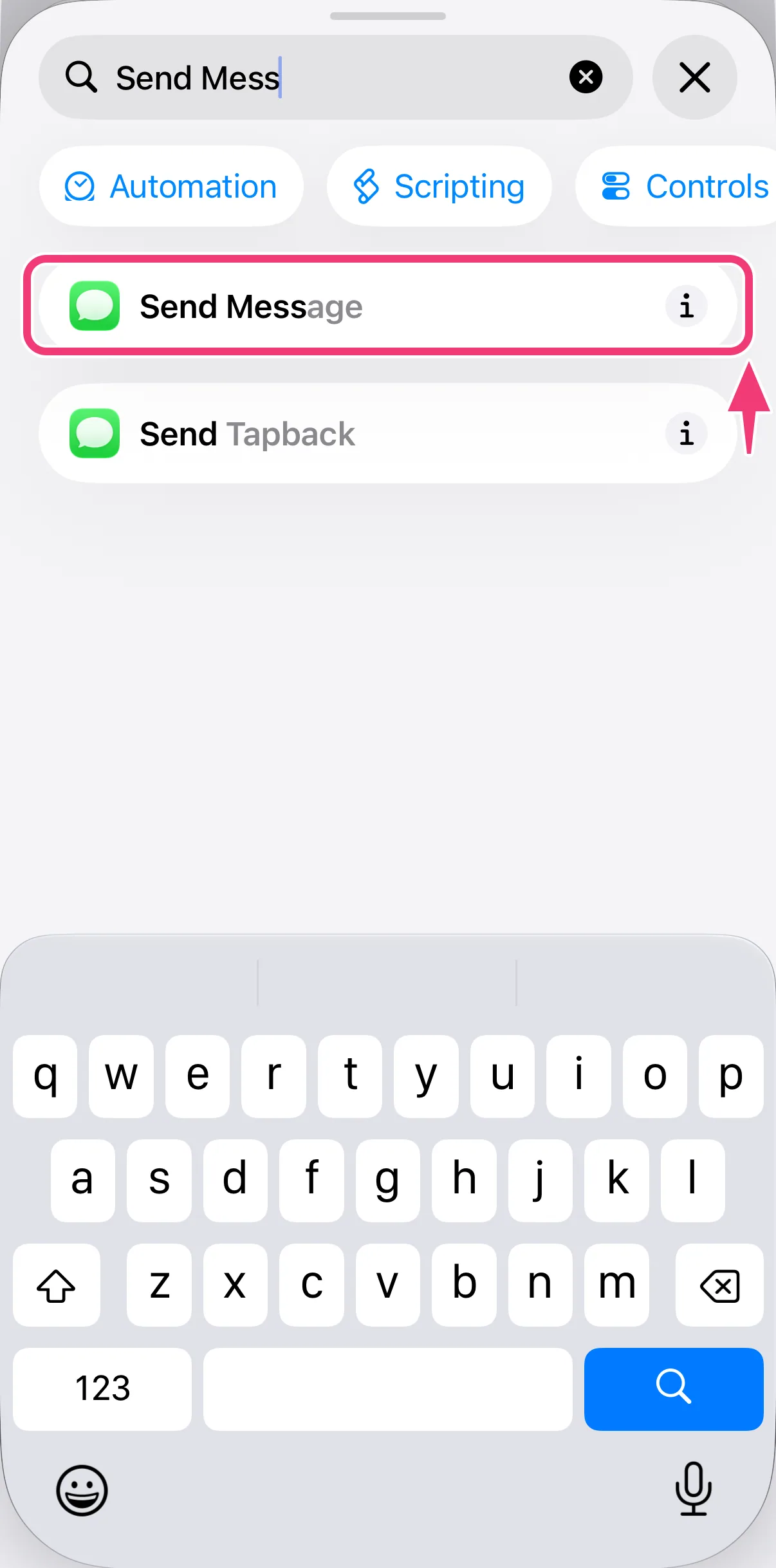
5. Add "Send Message"
Tap "Search" at the bottom, type "Send Message" and select "Send Message".
6. Insert the Message
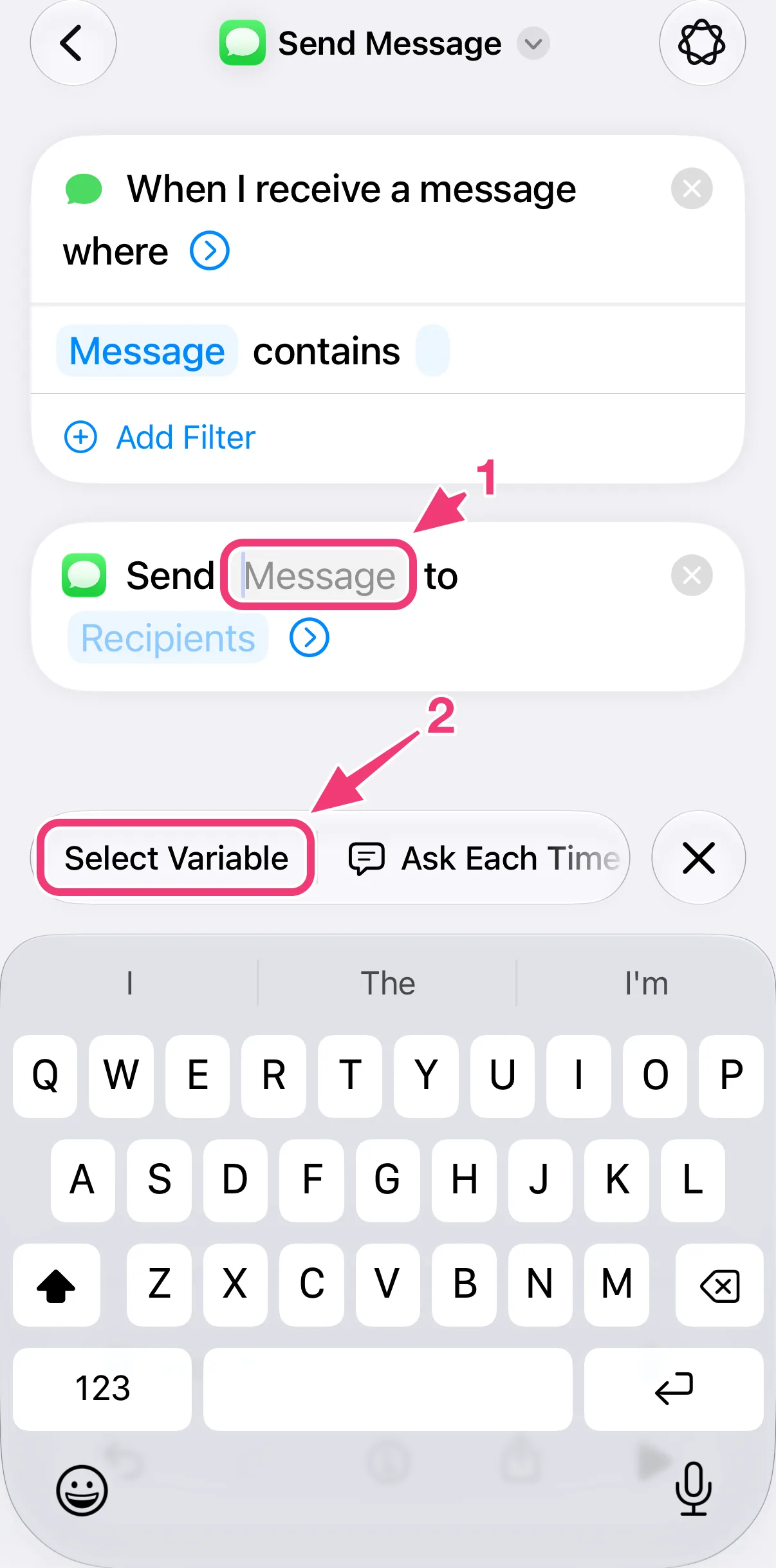
- Tap "Message" in the action.
- Tap "Select Variable" above the keyboard.
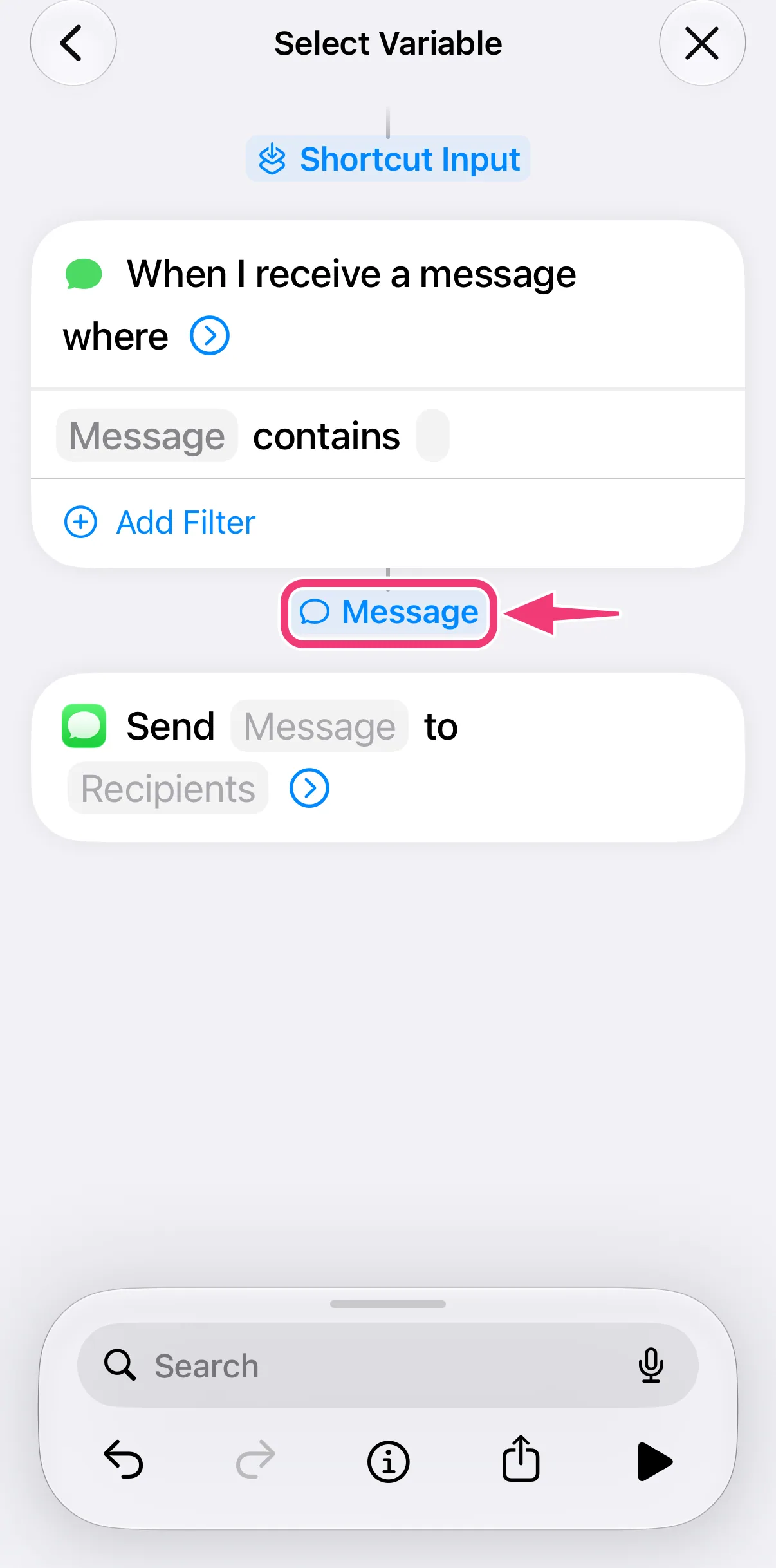
- Tap "Message" right below the trigger.
7. Choose the Recipient and Save
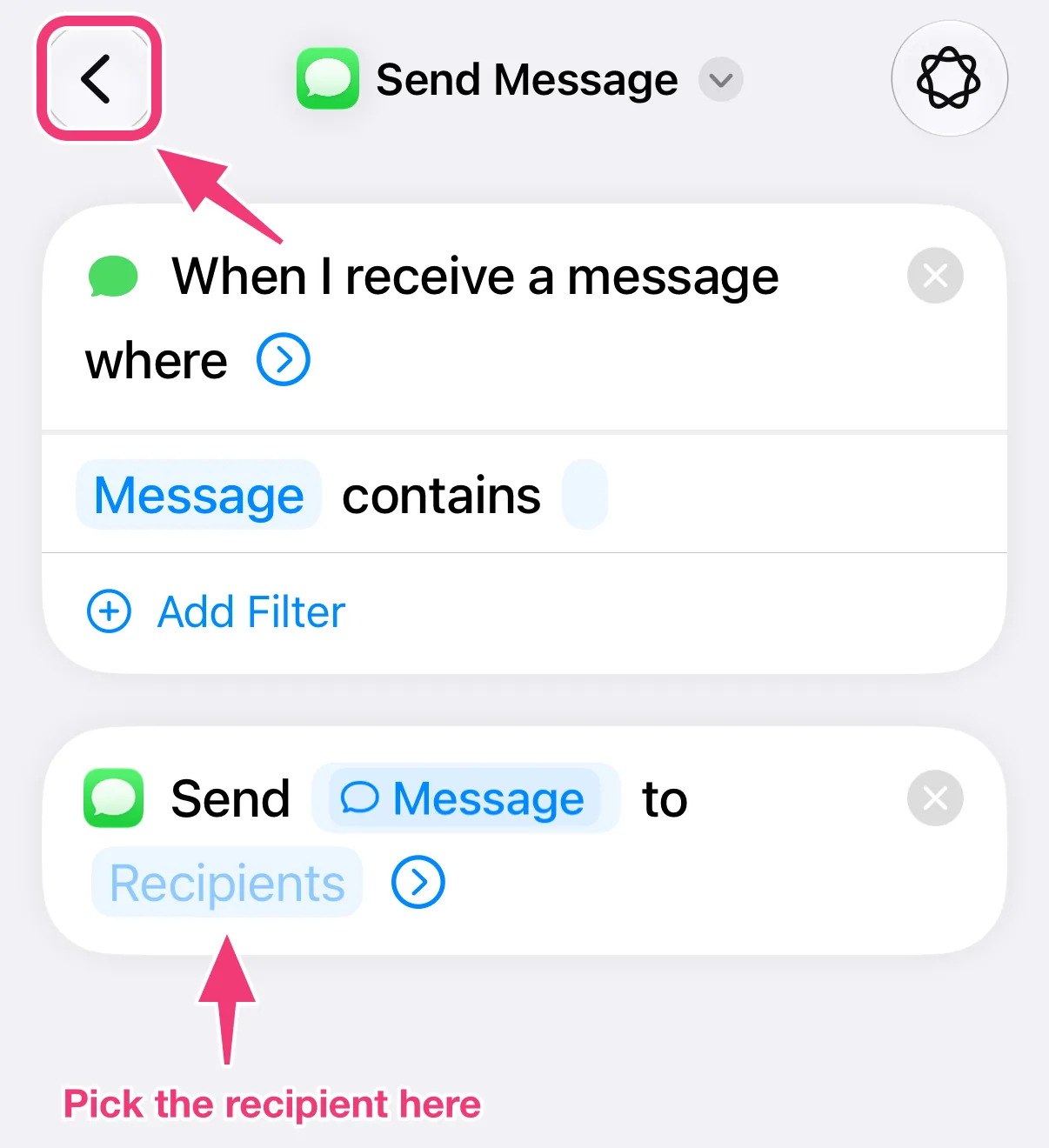
Tap "Recipients" and pick the contact or phone number your texts should go to. Then tap the back arrow at the top left: leaving the editor saves the automation.
8. Your Texts Will Now Be Forwarded!